 ChatGPT
 Claude
 Grok
Grok Perplexity
 Gemini
Technical SEO is what happens behind the scenes on your website. It is the code, the structure, the speed, and the signals that tell Google whether your site is worth showing to people. When technical SEO is broken, even the best content stays buried.
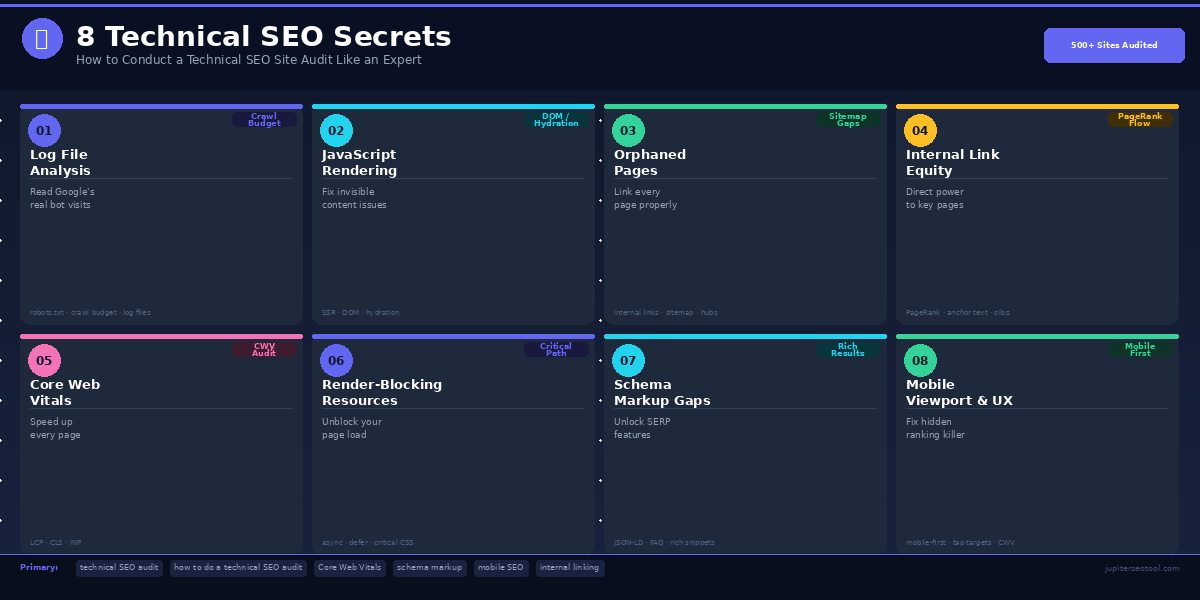
This guide covers 8 technical SEO secrets that most website owners have never heard of. These are the exact problems found again and again after auditing more than 500 real websites, from small blogs to large e-commerce stores. Each secret explains what the problem is, why it matters, and exactly how to fix it , in plain, simple language anyone can follow.
If you have ever wondered how to do a technical SEO audit, or why your site refuses to rank no matter what you try, you are in the right place. By the end of this guide, you will know what to look for, what to fix first, and how to give Google a clean, clear path straight to your content.
Why Your Website Isn't Showing Up on Google
You write a blog post. You hit publish. Then you wait. Nothing happens. No traffic. No clicks. No one reads it.
Sound familiar? Here's the truth: the problem probably isn't your writing. It's not your keywords either. The real problem is hiding inside your website , in the stuff most people never look at.
It's called technical SEO. Think of it like the plumbing in a house. The rooms might look beautiful, but if the pipes are broken, nothing works.
This guide will show you exactly how to conduct a technical SEO site audit , step by step, in plain English. No confusing jargon. No guesswork.
These 8 secrets come from looking at more than 500 real websites. Almost every site had the same problems. Fix these, and you give Google a clear path to rank you.
What Is a Technical SEO Audit? (And Why You Need One)
A technical SEO audit is a checkup for your website. Just like you'd take a car to a mechanic to find what's wrong, a technical SEO audit finds the hidden problems stopping Google from showing your site to people.
Here's the simple version: Google sends a robot (called Googlebot) to visit your website. That robot reads your pages and decides where to rank them. But if your site has technical problems, the robot gets confused, gets lost, or gives up.
When Google can't read your site properly, your pages don't rank, even if they're packed with great information.
So, how do you perform a technical SEO audit? You check 8 key areas. That's exactly what this guide covers.
Remember: You don't need to be a tech expert to understand this. Every secret below is explained simply, with real examples.
Secret 01 Log File Analysis [CRAWL BUDGET]
What Is It?
Your website has a secret diary. Every time someone - or something, visits your site, it gets written down. These records are called log files.
Googlebot visits your site too, and those visits are recorded. Log file analysis means reading that diary to see exactly what Google looked at, what it skipped, and where it got stuck.
Why Does It Matter?
Google doesn't have unlimited time to check every page on your site. It has a 'crawl budget', a limit on how many pages it looks at during each visit.
If Google wastes its budget on unimportant pages (like old filter pages or duplicate content), your best pages get visited less often. That means slower rankings and less traffic.
What to Look For
• Which pages does Googlebot visit most?
• Which important pages does it rarely visit?
• Are there error pages (404s) eating up your crawl budget?
• Are there hundreds of junk URLs being crawled instead of real pages?
How to Fix It - Step by Step
1. Ask your website host for your log files (usually called access.log)
2. Download Screaming Frog Log File Analyser (free version available)
3. Import your log file and filter by 'Googlebot' as the user agent
4. Sort by pages with the most Googlebot visits - are these your best pages?
5. Find important pages with few or zero visits - these need more internal links
6. Block junk URLs in your robots.txt file so Google stops wasting time there
Quick Tip: Check your log files once a month. If Googlebot suddenly starts visiting less, something is wrong - this often shows up in log files before it shows up in rankings.
Common Questions About Crawl Budget
Q: Why is Googlebot not crawling my entire site?
A: Your site probably has too many URLs. This could be from filter pages, session IDs, or pagination. Google sets a crawl budget based on your site's authority. Bigger, more trusted sites get more crawl time.
Q: How do I use robots.txt to save crawl budget?
A: Add 'Disallow' rules in your robots.txt file for pages you don't want Google to visit - things like /admin/, /cart/, /search?q=, and similar junk URLs. This frees up budget for your real pages.
Q: How do I manage crawl budget for large e-commerce sites?
A: The key is reducing URL variations. Stop faceted navigation (filters like color, size) from creating thousands of URLs. Use canonical tags on duplicate pages and block parameter URLs in Google Search Console.
Secret 02 JavaScript Rendering Issues [DOM / HYDRATION]
What Is It?
Many modern websites use something called JavaScript to build their pages. Instead of showing the full page right away, the website sends a 'skeleton' first - and then JavaScript fills in all the words, images, and links.
The problem? Google sees the skeleton first. If it doesn't wait for JavaScript to finish loading (which it often doesn't), it might think your pages are empty.
Why Does It Matter?
If your main content, navigation links, or headings only appear after JavaScript runs, Google might never see them. That means those pages won't rank for the topics they're actually about.
This is one of the most sneaky technical SEO problems because everything looks fine to you - but Google sees a completely different page.
How to Check If You Have This Problem
7. Go to Google Search Console
8. Click any URL → 'Inspect URL' → then click 'View Crawled Page'
9. Look at the screenshot and source code Google shows you
10. Does the page look complete? Or does it look empty/broken?
11. Also try: right-click any page → 'View Page Source' - if the text content isn't there, JavaScript is hiding it from Google
How to Fix It
• Move your most important content into the regular HTML (not JavaScript)
• Use Server-Side Rendering (SSR) - this means the full page is built before it's sent to Google
• If you use React, Vue, or Angular - consider Next.js or Nuxt.js, which support SSR
• Never put your main headings, body text, or navigation links only inside JavaScript
Quick Tip: After any website update, always do the URL Inspection test in Google Search Console. It takes 30 seconds and can catch huge problems before they hurt your rankings.
Q: Does Google index JavaScript content correctly?
A: Sometimes, but not always, and not immediately. Google can render JavaScript, but it's slower and less reliable than reading plain HTML. Critical content should always be in the HTML from the start.
Q: How do I see what Googlebot sees on my page?
A: Use the URL Inspection tool in Google Search Console. Click 'Test Live URL' then 'View Tested Page.' You'll see a screenshot of exactly what Google sees - and a source code tab showing what HTML was available.
Q: What is dynamic rendering and when should I use it?
A: Dynamic rendering means showing a plain HTML version of your page to Googlebot, while showing the JavaScript version to regular users. It's a temporary workaround - Google recommends SSR as a permanent solution.
Secret 03 Orphaned Page Discovery [SITEMAP GAPS]
What Is It?
An orphaned page is a page on your website that nobody links to. It's there - it's live - but it has no roads leading to it.
Imagine writing a great blog post and then never telling anyone about it. Not putting it in your menu. Not linking to it from any other page. It just floats there, invisible. That's an orphaned page.
Why Does It Matter?
Google finds pages by following links. If no page on your site links to a certain page, Google may never find it. And even if it does find it (through your sitemap), it treats that page as unimportant - because no one else on your site thinks it's worth linking to.
Orphaned pages are a common SEO problem - and they're completely fixable.
How to Find Orphaned Pages
12. Crawl your site with Screaming Frog (free up to 500 URLs)
13. Export all URLs found by the crawler
14. Also export all URLs from your XML sitemap
15. Compare the two lists - pages in the sitemap but with zero inlinks = orphaned
16. Also check Google Analytics for pages getting traffic but with no links pointing to them
How to Fix It
• Add links to orphaned pages from your most relevant existing posts or pages
• Add important pages to your main navigation or sidebar
• Create 'Related Articles' sections at the bottom of blog posts
• Build content clusters - group related posts and link them all to one main 'pillar' page
• If a page is truly useless, either improve it or redirect it to a better page
Q: How many clicks away should my important pages be?
A: Ideally 3 clicks or fewer from your homepage. If your best pages are buried 6-7 clicks deep, Google treats them as low priority. Flatten your site structure so every important page is easy to reach.
Q: What are orphan pages and how do they hurt SEO?
A: Orphan pages are pages with no internal links pointing to them. They hurt SEO because Google struggles to find them, they receive no PageRank from your site, and they often get crawled infrequently or not at all.
Q: How do I audit internal link structure for SEO?
A: Use Screaming Frog's 'Inlinks' report to see how many internal links point to each page. Pages with 0-1 inlinks are under-linked. Prioritize linking to your most valuable pages from your highest-traffic content.
Secret 04 Internal Link Equity Waste [PAGERANK FLOW]
What Is It?
When one page links to another, it passes along something called PageRank , a kind of 'vote of trust.' The more votes a page gets, the more Google trusts it. The more Google trusts it, the higher it ranks.
Internal links (links between pages on your own site) also pass PageRank. But most websites set up their links randomly, which wastes a huge amount of ranking power.
The Simple Analogy
Imagine your homepage is a millionaire. It has lots of money (PageRank) from all the backlinks pointing to it. Now it needs to hand out that money to other pages on your site.
If your homepage links to 200 different pages, each one gets a tiny amount. But if it links to just 10 pages - and those link to your blog posts - the money flows exactly where you want it.
How to Fix Internal Link Equity Waste
• Reduce the number of links in your header and footer - these dilute your PageRank
• Add contextual links inside the body of your articles (these carry more weight than nav links)
• Link from your most-visited pages to the pages you most want to rank
• Use descriptive anchor text - 'technical SEO audit guide' beats 'click here'
• Build a hub-and-spoke structure: one big guide page links to related smaller posts
• Avoid nofollow on internal links unless you have a specific reason
Quick Tip: Open your top 10 most-visited pages in Google Analytics. For each one, add 3 to 5 links pointing to pages you want to rank higher. This alone can move rankings in a matter of weeks.
Secret 05 Per-Page Performance Audit [CORE WEB VITALS]
What Is It?
Google officially measures how fast and smooth your pages are. These measurements are called Core Web Vitals. They look at three things:
• LCP (Largest Contentful Paint) - How fast does the biggest thing on the page load? Goal: under 2.5 seconds
• CLS (Cumulative Layout Shift) - Does stuff jump around while loading? Goal: under 0.1
• INP (Interaction to Next Paint) - How fast does the page react when you click something? Goal: under 200ms
The key word in this secret is per-page. Most people check their homepage and call it done. But every page is different. A slow product page could be quietly costing you rankings right now.
How to Check Per-Page Performance
17. Go to Google Search Console → Core Web Vitals report
18. Look at the 'Poor URLs' list - these are failing pages hurting your rankings
19. For any specific page, paste its URL into PageSpeed Insights (pagespeed.web.dev)
20. Run both mobile and desktop tests - mobile scores are almost always lower
21. Fix the pages with the most traffic first
Most Common Fixes
• LCP too slow? Compress your hero image, use WebP format, and add a 'preload' tag for the image
• CLS too high? Always set width and height attributes on every image and video
• INP too slow? Remove heavy JavaScript plugins, or move them to load after the page is ready
Q: How do I improve Largest Contentful Paint (LCP)?
A: Start by finding what element IS your LCP - usually a hero image or a large heading. Compress that image (aim for under 100KB), use modern formats like WebP, and add a <link rel='preload'> tag in your HTML head. Also ensure your server responds fast - under 600ms TTFB.
Q: What causes high Cumulative Layout Shift (CLS)?
A: The most common cause is images without width/height attributes - the page doesn't reserve space for them, so text jumps when the image loads. Ads loading late, cookie banners, and fonts swapping also cause CLS. Always set explicit dimensions on images and embeds.
Q: Why is my PageSpeed score high but CWV still failing?
A: PageSpeed Insights shows two different things: a lab score (simulated) and real user data (CrUX data). You can score 90+ in the lab but still fail in real-world CWV because real users have slower devices and connections. Fix based on the field data, not just the score.
Secret 06 Render-Blocking Resources [CRITICAL PATH]
What Is It?
When your page loads, the browser reads your HTML from top to bottom - like reading a book. When it hits a CSS file or JavaScript file in the header, it stops. It waits for that file to fully download before reading the rest of the page.
These are called render-blocking resources. And they're one of the biggest reasons pages load slowly.
Think of It Like a Traffic Jam
Picture a one-lane road. One slow truck stops the road. Everyone behind it waits. That truck is a render-blocking script. Every millisecond it takes to download, your page stays blank for the visitor - and Google notices.
How to Find Render-Blocking Resources
22. Go to PageSpeed Insights and paste your URL
23. Look for 'Eliminate render-blocking resources' in the Opportunities section
24. It lists every file that's slowing down your page and how much time each one wastes
How to Fix It
• Add 'defer' to JavaScript tags so they load after the page: <script defer src='...'>
• Add 'async' to scripts that don't depend on each other
• Move non-critical CSS to load after the page finishes
• Load web fonts with font-display: swap so text shows before the font arrives
• Move Google Tag Manager and chat widgets to load after the page is ready
Quick Tip: WebPageTest.org shows a waterfall chart of every file loading on your page. Each orange bar is a render-blocking resource. Eliminate those orange bars and your LCP score will improve immediately.
Secret 07 Schema Markup Gaps [RICH RESULTS]
What Is It?
Schema markup is a special code you add to your pages. It tells Google exactly what your content is - not just the words, but the meaning behind them.
For example, if your page has a list of questions and answers, schema markup tells Google: 'These are FAQs.' Google can then show them as a dropdown directly in search results - without anyone even clicking your page.
These special displays in search results are called rich results, and they get significantly more clicks than plain blue links.
Types of Schema That Get Rich Results
• FAQ schema - Shows questions and answers as dropdowns in search results
• Product schema - Adds price, availability, and star ratings to your listing
• HowTo schema - Displays step-by-step instructions directly in search
• Article schema - Helps Google understand and date your content
• LocalBusiness schema - Shows your address, phone, and hours in Google Maps and search
• Review schema - Shows star ratings from customer reviews
How to Find Schema Gaps on Your Site
25. Go to Google Search Console → Enhancements tab
26. See which schema types Google has already found (and any errors)
27. Then paste any page URL into Google's Rich Results Test (search.google.com/test/rich-results)
28. It tells you which rich results that page qualifies for
29. Compare what you have vs. what you could have - those gaps are your opportunity
How to Add Schema Markup
• Use JSON-LD format (Google's recommended method) - it's a small block of code in your page's head section
• WordPress users: install Rank Math or Yoast SEO - they add schema automatically
• For FAQs: find the real questions people ask (use Google's 'People Also Ask' boxes)
• Validate everything with Google's Rich Results Test before publishing
Q: Is schema markup a direct ranking factor in 2024?
A: Schema itself isn't a direct ranking signal - Google hasn't confirmed it boosts rankings. But it enables rich results, which dramatically increase your click-through rate (CTR). Higher CTR means more traffic at the same ranking. And some schema types help Google better understand your content, which can indirectly improve rankings.
Q: Why is my schema markup not showing in search results?
A: Several reasons: your page might not have enough quality content to qualify, the schema might have validation errors, or Google simply hasn't crawled it yet. Use the Rich Results Test to check for errors, and give Google 2-4 weeks to pick it up after you add or fix schema.
Q: What are the most effective schema types for SEO?
A: FAQ schema and HowTo schema offer the biggest SERP real estate gains for content sites. Product schema is essential for e-commerce. LocalBusiness schema is critical for any business with a physical location. Start with whichever matches your content type.
Q: How do I add LocalBusiness schema to my website?
A: Add a JSON-LD block to your homepage (and contact page) that includes your business name, address, phone number, hours, and website URL. Google uses this for the Knowledge Panel and local search results. Tools like Google's Structured Data Markup Helper make this easy.
Secret 08 Mobile Viewport & UX Issues [HIDDEN RANKING FACTOR]
What Is It?
Here's something many website owners don't know: Google looks at your mobile website first - not your desktop version. This is called mobile-first indexing.
That means if your phone version of the site has missing text, broken images, or tiny buttons that are impossible to tap, Google sees those problems as your real website. And it ranks you accordingly.
Why This Is a Hidden Ranking Factor
Mobile UX issues are hidden because most website owners check their sites on a desktop computer. Everything looks great. But open it on a real phone, and the problems appear: text too small to read, buttons too close together, pop-ups covering the whole screen.
These problems push visitors away. Google tracks when people come back to search results immediately after clicking your link (called 'pogo-sticking'). Do that enough, and your rankings drop.
Common Mobile Problems to Fix
• Pop-ups that cover the whole screen when the page loads - Google penalizes these
• Text smaller than 16px - hard to read without zooming
• Buttons or links that are too small or too close together to tap accurately
• Content that requires horizontal scrolling (side-to-side)
• Important content hidden behind 'tap to expand' buttons - Google may not count this
• Images that spill outside the screen edge
How to Audit Your Mobile SEO
30. Open Google Search Console → Mobile Usability report
31. Fix every error it lists - these are confirmed problems Google has found
32. Use Google's Mobile-Friendly Test for any specific URL
33. Open Chrome DevTools → press Ctrl+Shift+M to see your site on different phone sizes
34. Also test on a real phone - open your site in Chrome on your actual smartphone
35. Pay special attention to how pop-ups, forms, and navigation look on mobile
Quick Tip: Test your site on three screen sizes: iPhone SE (small), iPhone 14 (medium), and a large Android phone. If it works on all three, you're in good shape.
Q: Does mobile usability affect Google rankings?
A: Yes, significantly. Since Google switched to mobile-first indexing, your mobile experience IS your ranking experience. Poor mobile UX leads to higher bounce rates, lower time-on-site, and direct ranking drops, especially on mobile search results.
How to Conduct a Technical SEO Site Audit - Your Step-by-Step Checklist
Ready to do a full technical SEO audit? Follow this checklist. Work through it one step at a time. You don't need to fix everything in one day.
Week 1 - Crawl Budget
• Request log files from your host and analyze with Screaming Frog Log Analyser
• Block junk URLs in robots.txt (admin pages, filter pages, session IDs)
• Make sure your XML sitemap only has your real, important pages
Week 2 - JavaScript & Rendering
• Inspect your top 10 pages with Google Search Console's URL Inspection tool
• Compare 'View Page Source' vs. 'Inspect Element' to spot JS-hidden content
• Move any critical content out of JavaScript and into plain HTML
Week 3 - Orphaned Pages & Internal Links
• Run a full site crawl with Screaming Frog and find orphaned pages
• Add internal links to your orphaned pages from relevant existing content
• Link your highest-authority pages to your most important target pages
Week 4 - Core Web Vitals
• Check GSC's Core Web Vitals report for failing URLs
• Run PageSpeed Insights on your top 20 most-visited pages
• Fix LCP images first - compress them and add preload tags
Week 5 - Speed & Render-Blocking
• Add defer or async to all non-critical JavaScript files
• Inline critical CSS and defer the rest
• Move all analytics and marketing scripts to load after page content
Week 6 - Schema Markup
• Audit existing schema in GSC → Enhancements tab
• Add FAQ schema to your most important blog posts and service pages
• Add Product or LocalBusiness schema where relevant
Week 7 - Mobile UX
• Fix all errors in GSC's Mobile Usability report
• Remove intrusive pop-ups that appear on page load on mobile
• Increase all tap target sizes to at least 48x48px
Week 8 - Review & Repeat
• Check rankings and traffic changes in Google Analytics
• Re-run your site crawl and compare to Week 1
• Set up monthly checks for each area going forward
How to Choose the Right Technical SEO Agency
Not everyone wants to do their own technical SEO audit. Some businesses prefer to hire an expert. Here's how to choose the right technical SEO agency - without getting burned.
Good Signs in a Technical SEO Agency
• They ask to see your Google Search Console and Analytics data before quoting
• They provide a clear audit report with specific problems -not vague promises
• They explain what they found in plain English, not just in technical reports you can't understand
• They have case studies showing real traffic growth from past clients
• They talk about Core Web Vitals, crawl budget, and indexation — not just 'on-page optimization'
Red Flags to Avoid
• They promise guaranteed rankings (nobody can guarantee this — Google decides)
• They won't explain what they're doing or why
• They only focus on backlinks and don't mention technical issues
• Their own website has poor Core Web Vitals scores
• They use the same generic audit template for every client
Remember: The right technical SEO agency will find problems you didn't know existed. Ask them: 'What did you find in our log files?' and 'How is our crawl budget being wasted?' If they can't answer specifically, keep looking.
Frequently Asked Questions About Technical SEO Audits
Q: How long does a technical SEO audit take?
A: A basic audit takes 2-4 hours for a small site (under 100 pages). A thorough audit of a large site (1,000+ pages) can take several days. The fix time depends on how many problems you find and how complex they are.
Q: How often should I do a technical SEO audit?
A: Run a full audit at least once every 6 months. Run smaller spot checks every month - especially after any website changes, redesigns, or new content. After a major Google algorithm update, do a quick audit within the first week.
Q: What tools do I need to do a technical SEO audit for free?
A: You can do a lot with free tools: Google Search Console (crawl errors, mobile issues, CWV), PageSpeed Insights (page speed), Google's Rich Results Test (schema), and Screaming Frog SEO Spider free version (up to 500 URLs). These four tools cover most of the 8 secrets in this guide.
Q: What's the difference between technical SEO and on-page SEO?
A: On-page SEO is about the words and content on your pages - keywords, headings, meta titles, image alt text. Technical SEO is about how your website is built and how Google can access it - crawling, indexing, speed, mobile, and schema. Both matter, but technical SEO is the foundation everything else sits on.
Q: Do I need a developer to fix technical SEO issues?
A: Some fixes (like adding schema markup or updating robots.txt) anyone can do. Others (like fixing JavaScript rendering or improving Core Web Vitals) usually need a developer. The audit part - finding the problems - you can do yourself with the steps in this guide.
Q: How do I know if my technical SEO is improving?
A: Watch these three things in Google Search Console: (1) Total pages indexed (should go up), (2) Core Web Vitals - Poor URLs (should go down), and (3) Average position for your target keywords (should improve over 60-90 days). Technical SEO results aren't instant - expect to see movement within 2-3 months of fixing major issues.
Conclusion: Stop Guessing, Start Auditing
Technical SEO sounds scary. But it's really just maintenance - keeping your website in good shape so Google can read it properly.
You now know the 8 things that secretly stop websites from ranking. You know how to find them. You know how to fix them.
Here's the honest truth: most of your competitors aren't doing this. They're writing more content and building more links while their website quietly has broken plumbing underneath. Fix the 8 secrets in this guide, and you'll be ahead of most sites in your niche - without writing a single extra word.
Start with Secret 1 this week. Just look at your log files. See what Google is actually doing on your site. That one step will show you more about your SEO than months of guessing.